
- Qualcomm Launches Snapdragon 4 Gen 2 Mobile Platform
- AMD Launches Ryzen PRO 7000 Series Mobile & Desktop Platform
- Intel Launches Sleek Single-Slot Arc Pro A60 Workstation Graphics Card
- NVIDIA Announces Latest Ada Lovelace Additions: GeForce RTX 4060 Ti & RTX 4060
- Maxon Redshift With AMD Radeon GPU Rendering Support Now Available

Social & RSS Feeds
Latest Videos

Latest News
Nero 8 Ultra Edition

by Nate Marion on December 17, 2007 in Software
Is Nero’s latest upgrade worth the cash? We are leaning towards yes. With 8, Nero have shown renewed focus on what it is consumers are most interested in, and as a result, have made the application much easier to use. Read on as we explore all that’s new and notable.
Page 1 – Introduction
|
|
When it comes to recording data to discs, the folks at Nero AG have it down. Various incarnations of the Nero Burning ROM have been around since the earliest days of CD-Burners, and if you’ve purchased an optical burner any time within the past seven years or so, chances are you’re familiar with Nero software.
These days, the ol’ Burning ROM is just a small piece of a huge library of Nero software that has continued to evolve and grow. The most recent incarnation of the popular Nero software suite is Nero 8. Today we’ll be taking a look at some of the new and improved features offered by Nero 8 Ultra, and hope to give you a good idea of what this software can do for you, and if it’s worth your time and money.
Here’s what Nero themselves have to say about their product:
Nero 8 brings the digital world to your PC. Create and edit photo slideshows and high definition video, convert your favorite content to enjoy on portable devices or share them online with friends or communities, rip and burn CDs/DVDs with easy one-click functions, create a home entertainment center with integrated TV, DVD, music and video streaming, recording and playback options. Rest easy with advanced backup features to protect against loss from system crash or damaged disc. Nero 8 makes your digital life fun with easy-to-use functions and cutting-edge technology to help you manage your multimedia projects.
A rosy picture made more attractive by the lenient system requirements.
- Internet access or fax machine is required to activate certain technologies
- DVD-ROM-compatible drive required for installation
- Microsoft Windows 2000 (SP 4 or later); Windows XP SP1; Windows Server 2003 SP1; Windows XP Media Center Edition 2005, Windows Vista Home/Business/Ultimate (except for Nero ImageDrive and Nero Search)
- Microsoft Windows XP Professional x64 Edition/Windows Vista x64 Edition (all applications except InCD, InCD Reader, Nero Scout, Nero ImageDrive, and gadgets work in the x86 emulator that allows 32-bit Windows applications to run)
- Microsoft Windows Internet Explorer 6.0 or higher
- 1 GHz Intel Pentium III; AMD Sempron 2200+ or equivalent
- 256 MB RAM (512 MB RAM for Windows Vista)
- 1.5 GB hard drive space for a typical installation of all components
- Graphics card: min. 32 MB video memory, min. resolution 800 x 600 pixels, hardware overlay support, and min. 16-bit color settings
- CD, DVD, Blu-ray, or HD DVD recordable or rewritable drive for burning and playback
- Microsoft DirectX 9.0c or higher
- Installation of the latest WHQL-certified device drivers is strongly recommended
- Internet connection is required to use online services
- Additional Requirements
- Blue Laser Features
- Blue laser reading/writing device for Blu-ray Disc/HD DVD support
- Up to 25/50 GB hard drive space for Blu-ray Disc/HD DVD images
- Mobile Features
- Nero Mobile is included as a 30-day trial version
- Mobile phone or PDA with Microsoft Windows Mobile 2003 for Pocket PC/Pocket PC Phone Edition, Smartphone/Second Edition (SE) and Microsoft Windows Mobile 5.0
- Mobile hardware platforms (Intel XScale, ARM)
- Phone-to-PC connection over Microsoft ActiveSync, USB cable, or Bluetooth
- Not all mobile devices are compatible. Please see www.nero.com for details
- Other Features
- SecurDisc-compatible CD/DVD drive
- LightScribe/Labelflash-compatible recorder and medium
- To use LightScribe, the latest LightScribe host software must be installed
- TV tuner or video recording card for analog or digital recording, time-shifting, and any TV functionality.
- For a list of supported capture cards
- UPnP-capable equipment is required for streaming with Nero MediaHome server
- To use the Nero Smart 3D video templates in Nero Vision, a video card with 3D acceleration support and 64 MB video memory is required
You may want to refer to our review of Nero 7 Ultra Edition from last year for a frame of reference. For a complete list of all programs included with Nero 8 Ultra, check the product page. Now, let’s see how Nero 8 measures up.
SmartStart Menu
One of the biggest things that Nero is highlighting with this latest release is a more intuitive and user-friendly user interface, beginning with the SmartStart window.

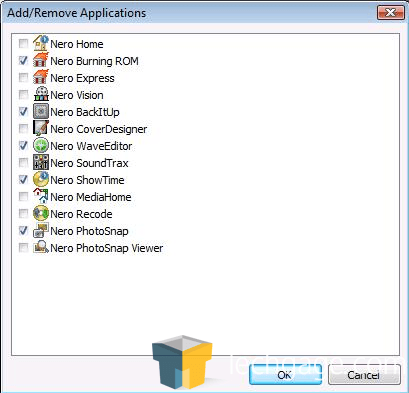
The SmartStart window received a pretty thorough cleaning compared to the somewhat busier look of Nero 7. The most notable new feature is the ability to add and remove program shortcuts to the menu on the right side of the window for easier access to commonly used applications.

On the left side of the window are four general shortcuts for creating data and music discs, ripping and copying discs within the SmartStart window itself.


As if drag-and-drop wasn’t simple enough, take a look at the copy disc option!

Press copy, watch a progress bar, insert blank disc, then watch another progress bar, and you’re done. The only problem with this feature is that copying a disc cannot always be cancelled, and can take several minutes.
The top of the SmartStart window lists functional program groups in the familiar way, but the menus are slightly different this time around, emphasizing general activities (rip, burn, edit) rather than data types (audio, video). You can see the functions of each tab below.


Another new addition is the inclusion of RSS feeds along the bottom of the SmartStart window. Default feeds for software updates, help, the Nero Community, etc. are shown initially and user-defined feeds can be specified in the options menu on the top left of the main SmartStart window.
Just below and to the left of the RSS feeds, there is a program launch menu similar to the Windows Start button that lists the applications included in Nero 8.

The more general function-based organization seems to have reduced the number icons on the screen, giving things a cleaner look and making it easier to find the right program.
|
|

Support our efforts! With ad revenue at an all-time low for written websites, we're relying more than ever on reader support to help us continue putting so much effort into this type of content. You can support us by becoming a Patron, or by using our Amazon shopping affiliate links listed through our articles. Thanks for your support!