Techgage logo

D-Link DNS-323 NAS

Date: June 26, 2007 - Author: Greg King

There's something to be said for convenient, mappable network storage. NAS not only offers an affordable way to keep your data safe, but also a handy way to share all your "stuff". As our review states, this name branded BYOD NAS box delivers on all fronts.


Introduction

As our personal media libraries continue to grow larger and large each day, serious consideration needs to be given to our storage capabilities. With our PCs filling up with personal photos, movies, music and por... more movies, we all have a considerable amount of time invested in our collections. I personally have taken my CDs and ripped them onto my computer at an acceptable bit rate, allowing me to stream them to my Squeezebox in my living room.

With all this time and effort that I put into my digital media, it's easy to overlook the unstable nature of disk storage. While many disk drives come with impressive warranties, like Seagate's 320 and 750GB drives we have looked at in the past, this only guarantees that the drive will be replaced in the event of a failure. It in no way suggests that the drive will actually survive the warranted time in its entirety. This is in no way an implication that today's hard drives are not reliable.

On the contrary, I feel quite comfortable with the drives I currently use and should something ever happen, there is usually more than enough warning when a drive is close to irreversible failure. Adding to this is the large scale availability of this media thanks to the invasion of broadband into our homes.

To address these storage concerns, there are a few ways to ensure that your data is at least safer than it would be if nothing one done at all. One approach, and this is usually the cheapest, is to purchase a separate hard drive and only store media on it. While this will protect your data should a hard drive fail (assuming it's not the media drive itself) you're still left being only one step away from disaster.

Another approach is through the use of an external hard drive. We have taken many looks at complete externals and enclosures alike and these have proven to be a simple, fast way to back up your data. The drawbacks to this approach are the lack of disk redundancy as well as the convenience of taking off with the small enclosure. If mobility isn't a concern, and data redundancy is a must, a simple NAS box might be what you are looking. Earlier this year, we took a look at the Thecus N2100. Offering a slew of features and dual gigabit NICs, the RAID ready NAS fared well in our testing.
For those of you who might not be familiar with the term "NAS," it's simply an acronym for Network Attached Storage. Like an external hard drive enclosure, a NAS is simply a storage device that connects directly into a network, be it large or small, in much the same way that an external enclosure connects directly into your PC via a FireWire or USB cable.

One advantage of a NAS is that large amounts of data can be shared across a network without the need for a host PC... similar to adding a networked printer. As more and more people are setting up home networks, various companies have taken up the challenge of creating innovative ways to share crucial data amongst the other network PCs and the product lineup spans the tech tree from top to bottom.

For the simple home users, there are small, single disk NAS devices such as the Vantec NexStar LX that we reviewed not too long ago. As needs and network sizes increase, a users can easily step up to a larger, RAID capable NAS like the Thecus we mentioned earlier. With the ability to work in either RAID 0 for maximum speed or in RAID 1 for unquestionable data security, the Thecus is a versatile device. With these larger, more feature friendly, NAS devices, homes and small business alike have the ability to backup their valuable data to a device that can easily be placed in another area of the house or building for added security.

For the mission critical data, one can step up to larger devices that house four and five hard drives and allow the use of RAID 5. These are ideal for companies that cannot lose any data and keep the company up and running. While this might sound a bit severe, it's for situations like this that RAID 5 was created. One such device that would fall under the home/small business category is the D-Link DNS-323 NAS. With a fair comparison feature wise to the Thecus N2100, the DNS-323 too offers dual SATA drives and the ability to implement not only RAID 0 and 1 but also JBOD and individual network drives. We took a look at a pair of D-Link products last month, the D-Link Xtreme N DIR-655 wireless router and the D-Link Xtreme N DWA-652 wireless adapter. We were left impressed by the performance and build qualities of the pair of products and expect nothing less from the DNS-323.

Closer Look

As with the other D-Link hardware we have evaluated, the DNS comes in a typical D-Link box. Instead of the orange found on the network gear, the DNS-323's box is green in color and full of important information regarding the NAS box and its features.

Once opened, the DNS-323 comes securely packaged in a hollow cardboard shell. This not only keeps the NAS in place during shipping, but also protects it from any bumps and bangs it might encounter along the way. With everything out of the box, we notice that D-Link has provided a fair amount of literature with the NAS including a manual, warnings about the uses of this device and how it requires the formatting of the hard drives as well as a disk full of information and the backup software Memeo.

Also included with the DNS are a Cat5e Ethernet cable and power supply and cable.

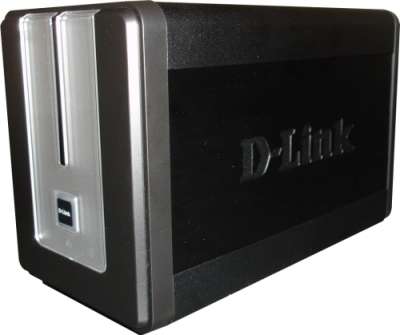
The device itself is all black with silver accents along the face of the unit. The look of the DNS is that of a small toaster. Adorned with a warning sticker that takes up almost the entire face of the NAS telling us that we need only slide the front cover up slightly and pull it forward once it's detached from the NAS itself.

The side of the NAS is completely black with the D-Link logo sunk into the side of the unit. Nothing to special about this but it does look good.

Moving around to the back of the NAS, we see the connections and the small cooling fan. Offering a single USB slot, one 10/100/1000 base NIC, a power port and a reset button, there aren't any extras to be found, but the essentials are there. Just above the connection ports is a pair of handles that allow the installed drives to easily be ejected out of the device. In between these two handles is the cooling fan that we mentioned earlier.

To eject a drive, or both, all that is required is that the front panel be taken off of the NAS and the levers in the back be pulled down. It's quite simple and makes swapping drives in and out a snap.

Here is a closer look at the I/O connections at the base of the NAS. Each is clearly marked in raised lettering but if the appearance of the port doesn't give it away, perhaps you should look elsewhere for a hobby.

Moving back around to the front of the 323, we see the front panel sans the large orange sticker. This panel simply needs to be raised upward slightly and pulled out. This allows access to the interior of the NAS and makes installation of drives a snap.

With the panel removed, we see the back of said panel. There is a pair of curved out pieces of aluminum to keep pressure on the drives and hold them firmly in the SATA power and data ports. There is also a set of clear pieces of plastic to channel the light from the four blue LEDs to the front of the panel and to the activity lights.

On the corners of the panel, there are small hooks. These are what hold the front panel to the body of the NAS. As you can see, they aren't very long so it only takes a slight raise to free the front door from the rest of the device.

There is only one button on the front and that's obviously for power. Around the button can be found hard drive activity LEDs and an LED each for the power and network activity displays.

Stepping back a bit, we can see down the DNS and get a good glimpse at the SATA connectors in the back. With the ease of installation, there isn't any wiggling or working around to get the drives to connect with the NAS itself.

Along the bottom of the 323, there is a pair of thick soft rubber strips that run the entire length of the device. These no only help the DNS from sliding around on a slick surface, but more importantly, they prevent any vibrations from reaching the desk and causing a lot of unnecessary noise.

Taking a closer look at the information at the bottom of the NAS, we see that D-Link has placed critical information about the device here. This includes information that will aid in setting up the NAS and getting it up and running. There is also a map of the device and troubleshooting information for the front activity lights.

Moving back to the front of the DNS, we take a closer look at the activity lights and power button. The large square in the center is the power button and just below it is a network activity display. Flanking the network light is a pair of hard disk lights signaling when the drives are being accessed. The design is simple and to the point.

To give everyone a decent idea of the size of this unit, we are comparing it to the recently reviewed Thecus N2100. As you can see, the N2100 is a bit taller than the DNS but is slimmer when standing up compared to the D-Link.

Moving to the back, we see that the Thecus offers an extra USB and NIC slot but both have similarly sized fans.

When placed one in front of the other, we again see that the D-Link is shorter overall, but is the same length as the Thecus.

Software and Installation

As we have mentioned before, the installation of hard drives into the DNS cannot be any easier. Simply slide each drive in at a time with the SATA connections in the lower left hand corner of the slots and press them into place. It's really that simple. With the drives in place, in our testing a pair of Seagate 750GB ES drives will be used, we started to get on our way.

To aid in the setup, D-Link has provided a little app that will search the network and find the NAS box. With the latest firmware installed (v1.03) we had a bit of a problem discovering the 323 so per D-Link's support line, we downloaded the latest version of Easy Search. This version of the app had no trouble at all discovering the NAS and setting us down the path to setting it up.

When the device appears, select it and click on the Configuration button. This will start the configuration process and initially will bring you to a login screen. By default, and this information can also be found on the bottom of the DNS itself, the user name is "admin" and the password field is left blank. This isn't original by any stretch of the imagination but it is easy to remember.

Once logged in, you will be presented with a screen asking you how you would like to configure your drive(s). You can choose between RAID 1 and 0 as well as JBOD (just a bunch of old disks), or you can choose to setup each disk individually, thus creating not one, but two networked drives.

Once chosen, an obligatory warning will pop up reminding you that by formatting the disks, all data that was on the hard drives will be lost... mostly. We will get into recovering lost data in another article, not here. Click Ok and proceed.

Dependant on the type of disk you decide to setup, you will be allowed to choose how much space you would like to make available for use. Obviously the type of RAID used will significantly change the available amount of space but whatever you decide, simply enter in the number of gigabytes that you want to use.

Once the size of the array is decided upon, click next and a status window will pop up letting you know how much of the disk has been formatted and how much is left to go.

Once completed, we see that our volume name is Volume_1 and it's using D-Links Ext2 file system. No NTFS for all of you out there.

Once completed, you will have to restart your DNS and wait while it configures the settings that you just made. This takes quite a while and by quite a while, I mean a couple of minutes.

Once the NAS restarts, we can now log into the devices web interface. To do so, you can start by typing in the IP address of the 323. If you have your router setup to administer dynamic ip addresses, it should follow the naming scheme of your PC and any other devices on your network. An easy way to find this out is by using the Easy Search Utility provided by D-Link.

In our case, the IP was 192.168.0.198 but this will be different for everyone dependant on the available IP range your router is setup to use. If for some reason you cannot find the DNS, the default IP is 192.168.0.32. The default IP can also be found on the bottom of the DNS as well.

By selecting to click the "Run Wizard" button, you will be prompted to setup the administrator password, the time zone, whether or not a static IP address is used or if the DNS will use DHCP as well as give the NAS a name.

Once you have everything the way that you want it, a simple restart is required to allow the DNS to initialize the settings that were just setup.

Features and Test Results

As with most NAS devices, there are usually a few options that can be used if needed or safely ignored if so desired. In the case of the DNS-323, there are plenty of options to keep everyone but the pickiest/neediest of users happy. Since this unit is marketed towards those of us who do not need an enterprise level NAS device, in this review, we will cover everything that the DNS offers, but only go into detail on the most important features.

The web interface that D-Link provides is almost identical to the interface that we saw with the DIR-655 Draft N router. As with the packaging, the most noticeable difference is that the DNS menu is green where the router's menu is orange. Appearances aside, the interface is divided into six different tabs. The first tab that you will see, and the one that loads one you are logged into the DNS is the setup tab. Here you can choose between 100 and 1000 LAN speeds or set it to automatically detect the network speeds. You can also view the LAN information and give the device a name, assign it to a workgroup and give it a description.

On the second tab, the advanced tab, we find the bulk of the administration settings. It's here that we can setup user accounts and give those individual users storage quotas and file/folder accessibilities. This is quite useful if you are going to have many different users accessing the data stored on the NAS. You can allow certain users to access some folders while restricting them from seeing what is inside others. This also gives you the ability to keep everyone from filling up the drives with useless junk. In a work environment, this is quite useful as you can limit each client to a set amount of space that they can use as their personal storage.

It's also in the advanced tab that a FTP server can be setup. This is helpful if you want to share files, large or small, with friends and family across the network or internet. Another use is to setup the DNS as an UPnP server. This allows you to share multimedia with compatible devices such as network media players. The big one that will interest most is the iTunes server. This is honestly one of the easiest pieces to setup. I hate to use a terrible cliché, but you simply set it and forget it. All that needs to be done is to enable the iTunes server build into the DNS-323 and any iTunes clients on the network will see the NAS and have the ability to connect to it should they fancy your song selection.

In a large office setting, clients who access your iTunes server can be controlled by setting up a server password. While your server will show up in their iTunes player, they will not be able to access the music on the NAS without knowing the password first. That way you can control who is listening and who isn't. This is enjoyable when trying to aggravate co-workers.

The last feature found in the advanced tab is the built in DHCP server. If you have a small network and are either using a router without DHCP capabilities, or are not using a router at all, you can set the DNS-323 up to administer dynamic IP address as new users log onto the network containing the NAS. I cannot honestly see a scenario where this is needed but if you're ever in dire need of a DHCP server, this little NAS can do it by God. Just make sure that you do not enable it if your router is already setup to hand out dynamic IPs. Then the two devices just fight it out and you get nowhere.

The next tab is the Tools tab. In the tools section the administrator can setup the device password as well as the system time. This allows your DNS to sync with the router, which in our case is the D-Link Xtreme N that gets it's time from one of our PCs. If you don't like this approach you can easily set it up to look up the time on a different online server.

You also have the ability to reset the NAS to the factory defaults, restart it if there were any changes made that require such a thing. It is in the tools tab that we find the ability to upgrade the firmware and setup the DNS up to notify an administrator by email if a drive fails. This is a handy feature if the DNS is placed somewhere other than right beside the administrator. While not to in depth, as you will see, the email is to the point and lets you know that you should really get things fixed.

Another useful feature found in the tools tab is the ability to set the NAS to go into standby mode after a set amount of time that it sits inactive. This not only saves money over the life of the unit but also saves your hard drives from spinning constantly 24/7. There is a slight delay when bringing the NAS out of standby but we never experienced it lasting any longer than 15-20 seconds.

The last feature found in the Tools section is the RAID management options. This is where you can redo your RAID settings should you decide you want to go from a RAID 0 array to a RAID 1 array. This simply gives you the same formatting options that we dealt with at the initial setup.

The last two tabs are status and sign off. The last one is quite self explanatory and the first is pretty easy to figure out as well. In the status tab, this give you all of the information you could desire about the DNS-323, the network its apart of and the hard drives themselves. If you want to check the amount of space still open, you can look here. If you are wondering what the temperatures of the hard drives are, this is where you would look.

One more feature that we would like to point on is the scheduled downloads. When you first log in, you enter the user name and password (hopefully by this time you have changed it from the default "admin") and instead of logging in under the configuration icon, you select the schedule downloads button. Here you can provide the DNS a download link to follow, give it a time to download and leave it be... another instance that echoes Ronco's "Set it and forget it!" One thing that I personally recommend is that you test the link first. When you do, it will follow the link, make sure it's a valid download link and to verify that it is, and that it checked, it will give you the size of the file to be downloaded.

Once the link is verified and the time is set, you simply save the settings and wait. This is handy if you want to download something but don't want to keep the PC powered on. You can check the status of the download once it's in motion and it will show you the download speed, the percent of completion as well as the download link. You can cancel this download at any time. When you set up the download, it allows you to select on the NAS where you want to save it.

For those of you who really don't need all of the extras that the DNS-323 provides, and simply want to expand your network storage, all that needs to be done is to map the NAS to your PC. In our case, the server's name is TechgageNAS (which is what we named it) and the folder that houses the data is called Volume_1. As you can see in the picture, the mapping goes as such: \\TechgageNAS\Volume_1. We have it a drive letter and it was done. There isn't anything to it and most anyone can accomplish this with relative ease.

In our testing of the NAS, we simply transferred a 600 MB file across the network off of the NAS and then onto it. We timed the transfer and with the time, figured out the MB/s speeds of the NAS. This was done in RAID 0 and 1 and each array was tested in 100MB and 1000MB LAN spends. Rob: I forgot the graph. Could you make one up pretty please with sugar on top? Thanks.

Final Thoughts

In working with the D-Link DNS-323, we were pleasantly surprised with the ease of use and features that it came with. We did not touch upon the Memeo software included but having worked with it in the past, it's simply allows you to setup backups of individual files or folders on a given PC. It's nice to use when you want to periodically back up your data but don't want to take the time to touch each file every time you do a backup.

We liked the design of the DNS and the fact that we had everything installed in less than a minute was impressive as well. I personally did not like how easy the front came off but if this is a device that isn't going to be moved frequently, this is something that can be lived with. A lock would be a nice addition in future versions.

As for the network speeds, they were what we expected and close to what D-Link advertises on their site. While not blistering fast, they were decent for a networked device. For those of you that want raw speed, get a USB or eSATA device, this type of hardware is geared towards those how have massive amounts of data and either want to be able to remotely back that data up or share that data with other users or devices.

With everything that the D-Link offers, it still can be found for under $200 (US) around the web. Also take into consideration the Thecus N2100. We loved that NAS when we reviewed it earlier this year and it costs just under $300. The DNS-323 comes in over $100 less, feels far sturdier and is completely tool less. Granted, there are a few hidden costs.

It is a BYOD NAS so you are going to have to supply the hard drives. With that said, most of us have a drive laying around and if you don't, prices are low enough that most users who are eyeballing this NAS, can afford to pick up one or two. Remember, the DNS can be run with one drive so it's one of those situations where you can get one now and get another one later. With everything in mind, the D-Link DNS-323 gets a solid 9 out of 10 and an editor's choice award on top of that.

Discuss in our forums!

If you have a comment you wish to make on this review, feel free to head on into our forums! There is no need to register in order to reply to such threads.


Copyright © 2005-2008 Techgage Networks Inc. - All Rights Reserved.