Date: March 11, 2008 - Author: Rob Williams
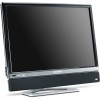
Gateway, not content to let Dell and others hog the limelight in the display market, have recently launched their XHD3000 monitor. It offers a wide-range of connectivity options along with bright picture and an incredible upscaler. When said and done, this is one model we can heartily recommend.
While at DigitalLife last fall, Gateway had made a few notable announcements. The biggest was their all-in-one PC, appropriately called the "One", an idea first accomplished by Apple and later copied by Dell. But as cool as the One was, the product to really grab my attention was their XHD3000 30-inch display. But in this case, "really grab my attention" could be translated as, "was overcome with an insatiable desire to snag and run."
At CES 2007, we knew that Gateway was trying to change their company image. Up until that point, they didn't cater to the hardcore crowd, the enthusiast crowd... the crowd that really wanted to see some higher-end products that was built just for them. At that time, the company unveiled their first 24" display, which at the time, beat out Dell's equivalent offering all around and cost even less. It was at that point that we knew Gateway meant business.
They've obviously been doing their homework, because I was so drawn to the XHD3000, I had a hard time leaving. At the time, I had a Dell 3007WFP-HC sitting back at the office, and quite simply, there was no comparison. The 3007WFP-HC, for example, had absolutely no OSD and no connectivity aside from DVI. It just didn't make sense to me.
Things have of course changed since then, since the 3007WFP-HC had some drastic price-drops, so these two models can no longer be compared. Instead, now Dell's latest 3008WFP is the new model in the comparison table. We will get more into these later in the review.
The main reason the XHD3000 caught my eye was because an HD DVD movie was playing, and it looked simply incredible. At first, I thought it was a television, not a computer monitor. The reason some content can look so sharp is thanks to the built-in Silicon Optix Realta HQV upscaler, a special chip thats sole-purpose is to upscale video up to 1600p resolution, native for the display.
What this means to you is that any content should look good, whether it be a game at a lower resolution, or even a Playstation 3 or Xbox 360 game. The input doesn't matter. If video is passed through, it will be upscaled. Of course, some content will look better than others, and that's something we will tackle soon.
Before we delve in further, here is a quick specs table of what the display delivers:
Gateway XHD3000 |
Specification |
| Native Resolution | 2560x1600 (16:10) |
| Response Time | 6ms |
| Maximum Vertical Freq. | 60Hz |
| Maximum Horizontal Freq. | 74KHz |
| Brightness | 400 cd/m2 |
| Contrast Ratio | 1000:1 |
| Pixel Pitch | 0.251mm |
| Viewing Angles | 176°/176° |
| Connections | HDMI VGA DVI-D Component Composite S-Video Audio Output (RCA L/R, S/PDIF Coax, and S/PDIF Toslink) |
| Et cetera | HD Picture-in-Picture Advanced OSD Antiglare 6 USB Ports Built-In |
One of the areas where the XHD3000 really shines is with the sheer amount of ways to connect your components to the display. Every common type is supported here, from DVI and VGA to Component to Composite. Yes, you can even hook up your Sega Dreamcast or Nintendo 64, if you wanted.
Also supported is HDMI, meaning you can hook up your PS3 or Xbox 360 to the display as well. In fact, if you had each console, you could use a Component connection for one, HDMI for the other, then use DVI for your computer. That would allow you three devices to be connected to the display at one time... more if you want to hook up a classic console using composite/S-video.
Like most monitors from popular PC-builders, this one includes support for an external speaker-bar, which plugs in underneath, right beside the power. At DigitalLife, I was told that this speaker bar would be a separate purchase, but as it seems, that is not the case. Only Best Buy and the official Gateway site sell this display and neither sell it without the bar... a good thing for you, since I was told it was to add to the $1,699 price.
The first thing you might notice about this display is that it looks huge. Granted, you'd expect this from a 30-inch display, but Gateway's XHD3000 seems larger than the rest thanks to it's speaker bar, which helps make it look like a more solid product. Because the monitor has this speaker bar, it cannot be raised or lowered, but can be tilted front and back. At first, I found it frustrating that it couldn't be heightened, but it was something I became used to quickly.
Taking photographs of a monitor in action is one of the most difficult types of photography, and my personal pictures are certainly far from being ideal. So even though photographs of powered-on displays is not something you should base a purchasing decision on, they are here to help in any way they can.
Because I acquired this display almost immediately after I sent Dell's 3007WFP-HC, it was a simple task to find out which of the two were brighter. The XHD3000 wins that challenge hands-down. The downside is that this display does not have a high color-gamut like the Dell, so in the end, Dell's display might make more sense for professional photographers, if that's your goal.
The monitors default virtual resolution is 1280x800, so that's what will be seen during the PC POST and also after a default Windows XP installation. Vista will default to something a bit higher as it has a little more sense than it's predecessor.
One problem I ran into was with regards to Linux, which I deem rather impossible to run at native resolution on this display. This is due to a few broken EDID profiles which tell the video driver that 1280x800 is the max supported resolution. I tried out a few different video cards and neither would allow me to go beyond the default resolution, even while trying to force it.
Different cables were used also, and nothing helped. I am truly unsure if it's absolutely impossible to use this monitor at native resolution in Linux, but it was a problem I spent near a full day on and could not rid. I've been told by Gateway that an upcoming firmware update will fix this problem, but there is no known ETA. The question of why the video drivers unlock all resolutions in Windows and not in Linux is beyond me.
The image below is the display with all default settings. During the entire use of this display, I didn't change anything. Though some configuration may have helped things, I didn't feel a need to delve into it. At default, the display is bright, as are the colors. For those not pleased with default settings, brightness, contrast, sharpness, saturation and hue settings are there for the tweaking.
Yes, that's a group of flowers on my desktop, and I'm not entirely proud of it. One of the best things about a 2560x1600 display is that it forces you to go out and shoot your own pictures, if you want a good, clear picture to fill the desktop. There are few sites that offer wallpapers that look truly fantastic at that resolution, understandably.
That aside, fonts are sharp and anything at native resolution is going to look fantastic. Because the display doesn't boast a huge color gamut, the colors are not as natural as you would see on high-color monitors, such as the Dell 3008WFP, but it will no doubt please most people.
Gaming, as you would expect, will also please anyone who takes a look at it. Every game looks extremely sharp with great color, and given the fact it's 2560x1600, it's hard to see games look much better. Just be warned, you will need a beefy GPU or two if you want to run the latest games at this resolution reliably. Even 1920x1200 is far less stressful on a GPU. Consider that at 1920x1200, 2.3 million pixels are being rendered, while 2560x1600 bumps that up to 4.1 million. That, is one huge jump.
One major problem most displays have is being able to render game console video well. Even though the monitors fully support them, colors can bleed, blotching can occur and sharpness will be lacking. Not so for the XHD3000 though.
While I had this display, I put it through quite a collection of tests. Because I had my Xbox 360 die at almost the exact same time when I received this display, I decided to use my PS3 for most of the testing, via HDMI and Component connections. I can honestly say that this display blew me away using either. It's upscaler is put to extremely good use here, and I quickly decided that I liked the picture quality seen here far more than on my 26" LCD TV, and not only due to the larger size.
I tested Rachet & Clank: Tools of Destruction to see how good the scaling and color was, and overall, I cannot complain. The picture fit the entire screen fine and suffered no visible distortion issues that are common on other monitors. The upscaler chip does it's job incredibly well, to say the least. I would expect no less of the Xbox 360, but regret being unable to test it out.
Again, it's difficult to truly see how great the quality is through these screenshots. I am confident that anyone who owns this monitor and uses their PS3 or Xbox 360 will have very little or no complaint. The lone complaint I have is that the monitors overall brightness is dimmed a bit when the upscaler is being used, but this is something I will touch up on in the conclusion.
Since the monitor can handle composite connections, I hauled my old Sega Saturn out of the closet to see just how well the upscaler handles that situation. Now, this console was first launched in late 1994, so I didn't expect miracles here. I am unsure of the graphic resolution of the console, but 640x480 seems like a reasonable estimate. Upscaling something like that through an already mediocre cable is a challenge.
As I expected, the console didn't look amazing, but it doesn't look amazing on any high-definition TV or display. The fact is though, when considering it was such a massive upscale and I was using a Sega Saturn from 1994 on a 30" display today... it's hard to complain. The game was fully playable, and that's what matters.
On the next and last page, we will take a look at movie viewing, PIP and lastly, our final thoughts.
For movies, I used the Playstation 3's built-in Blu-ray player and used both Casino Royale and Die Hard: Live Free or Die Hard. Though very difficult to tell in the photos, the upscaler again performed well here and delivered crisp video with great color. Some of the photos make the image look brighter than it actually was thanks to a slower shutter speed, but I can say the movies looked quite natural overall.
I watched through Die Hard: LFoDH with a friend and we sat about 5 feet from the display. It's at that point when the image quality looks even better. If up close, you can quicker notice any imperfections, but sitting back at a comfortable level, the nice image quality becomes more apparent.
Blacks were very black, which was helped by the fact that this monitor displayed almost non-existent backlight-bleeding. Notice the second image especially... the top end bottom edges of the wide-screen format movie show absolutely zero signs of this.
Standard DVD's of course won't look spectacular on most new televisions/displays, and the same rule applied here. The upscaler did a fare job on those, but movies of course have a lot more "pop" in a high-definition format.
Personally, I can't think of a true need for PIP on most any TV/display, but I am apparently not the target audience for the feature. Regardless of what connection you are using, you are able to turn to PIP mode using any connection as the primary and any as the secondary. This PIP window can be moved to any side of the display and it's size can be increased as well.
The largest the PIP window can get is what's seen in the above photo. As you can see, the image is transparent, but this is another feature. You have the option to set it at 0% transparency up to 75%, in incriments of 25%. This could be useful if you had an IM conversation going on your Windows desktop and wanted to watch a move on an external box at the same time.
When I first saw this display at DigitalLife, I was hoping that once I had one in the lab, I'd be just as pleased with it. The truth is, I was so impressed by this monitor there, that I half-expected to get back home and find it not perform as well outside of the staged environment. Luckily, my skeptical nature proved me wrong.
At the time this monitor was released, the two biggest selling features was the upscaler and also the fact that it was the brightest 30-inch display on the market. Though I deal with personal photography images, I tend to be drawn more towards brighter displays than more "natural" color, as wrong as that might be. It's when the two are put together (like on Dell's 3008WFP) that it's a perfect combination.
The upscaler on the XHD3000 is impressive... very impressive. One reason I was so intrigued by the display was because I play an older MMORPG (Asheron's Call) which maxes out at 1920x1200 resolution. On the Dell 3007WFP-HC I reviewed before, playing the game at it's max resolution was hard. Because I was using a non-standard resolution, the fonts were bleeding and tough on the eyes, along with overall blotchiness.
The upscaler here fixes all of that. Since I've had this display here, I've played quite a bit of that MMO without issue. Even though I am using a non-standard resolution, the fonts and in-game graphics are just fine... a very nice advantage. Generally speaking, any game at 1920x1200 on this display will almost look native (2560x1600) thanks to the upscaler.
You can of course go lower, and even then the upscaler impressed me greatly. At resolutions below 1920x1200, the upscaler does it's job well, but the game won't look as stellar. This is primarily due to the fact that the upscaler has less pixels to work with, while 1920x1200 offers plenty. But still in the end, low resolutions look better on this display than any other out there.
Overall, the upscaler is outstanding, but there is one caveat. Whenever using a non-native resolution, the monitor loses its overall brightness. While it's 400 cd/m2 at native, I assume it to be closer to 300 cd/m2 when using a non-native setting. Still not horrible, but retaining the monitors full brightness would have been great. This could be caused by the upscaler chip, I'm unsure.
Upscaling all aside though, this monitor proved to be the best one I've ever laid my hands on, and for that, I am awarding it an Editor's Choice award. It offers great image quality, fantastic brightness (at native), an incredible upscaler chip and a huge assortment of connections. Though slightly expensive, at $1,699, you do get what you pay for.
As I mentioned in the intro, the leading competition to the XHD3000 is Dell's recently-launched 3008WFP. That display retails for $1,999 and offers a 110% color gamut, 3000:1 contrast ratio and also includes an upscaler chip of some sort. We should have this display in our labs in the coming month, so we'll see at that time how it stacks up to this Gateway.
Kudos to Gateway for showing us that they mean business with this monitor. Now bring on a high-gamut version!
Please?
If you have a comment you wish to make on this review, feel free to head on into our forums! There is no need to register in order to reply to such threads.

Copyright © 2005-2008 Techgage Networks Inc. - All Rights Reserved.