Techgage logo

Logitech diNovo Mini

Date: April 7, 2008 - Author: K. Samwell

Logitech surprised us at CES with the launch of their diNovo Mini media keyboard, which is not much larger than a cell phone. But despite its size, it packs in the functionality, and is even supported by the Playstation 3. Are we impressed? Let's just say that once again, Logitech has pulled it off.


Introduction

The Logitech diNovo Mini is a palm sized, cordless mini-keyboard designed specifically to work with Home Theatre PC setups. It has dedicated Windows Media Centre controls, a unique integrated dual purpose ClickPad which serves as both a touch pad and a navigational pad, and Bluetooth wireless technology.

Logitech is no stranger to creating quality HTPC peripherals, and we have taken a look at a few in the past, such as the diNovo Edge, which was not only well-received by us, but the entire media.

We were skeptical at first with the diNovo Mini, because while the Edge proved to be a superb HTPC keyboard, how useful could a handheld version be? This past CES, however, Rob had a chance to go hands-on and was so impressed that he awarded it one of our Best of CES 2008 awards.

We've received Logitech products in the past that we were first unsure about, but later came to appreciate. With all of that in mind, can Logitech do it again? Can the diNovo Mini replace what I've already been using for quite some time?

Closer Look

Allow me to give you a brief history of where I'm coming from on this item. I am currently using the VidaBox Wireless Media Keyboard which I previously reviewed, and have completely enjoyed, with some post review drawbacks such as the fact this is rather a large item to have nearby on my coffee table, since I do actually swap back and forth between Media Centre and Windows Vista.

The following image will give you an idea as to the size difference between my current keyboard (on the right) and the diNovo Mini (on the left).
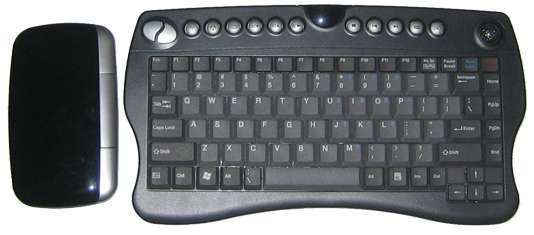
Now that you have a good grasp of how small this item is, I want to examine its other physical factors before we move onto functionality. This unit is very lightweight, only 175g total including the receiver and battery! That's about the same weight as a Wham-O Ultimate Frisbee!

It has a contoured shape that minimizes discomfort from edges and corners, and does feel natural and well balanced in my hand. There is a non-slip grip surface on the back to ensure it doesn't slide out of your hands and also acts as a protective cover. The semi-transparent cover has me a little worried, though. It seems a little too flimsy, particularly when the unit is opened up; the cover seems fragile and just begging to be snapped off. When you are handing this device to a second person, the natural reaction is for the recipient to grab the device by the cover, which stresses it even more. While I understand the need for this cover, I would have liked to have seen a way for it to flip over and become the back of the item, when fully opened.
One thing I thought was interesting, was that the USB mini-receiver stores under the removable bottom plate to prevent loss. Now that's smart. If this item is not in use or if you're moving, it's the little things that disappear on you, and this prevents you from losing the receiver. Also contained in the back of this item is the battery compartment, a connect button to allow Bluetooth discovery, and a platform switch defaults to PC but allows you to switch for use of the diNovo Mini with the PlayStation 3.

Uh... wait a minute. The Xbox 360 and Apple's OS X are not supported? Not to go off on a rant here, but what's up with that? The Mini would be ideal for typing in all those band names in Rock Band that you find out are already taken, and for sending your buddies on Xbox Live messages and the like.

Let me just state for the record, I'm disheartened that this is not for use with the Xbox 360. Since Apple isn't exactly known for their home theatre applications, I understand this omission (though I'm sure Apple users will disagree with me). This actually confuses me, since this is so perfect for the Microsoft Media Centre that it would seem natural to also be usable with the Xbox.

Setting Up, Functionality, Final Thoughts

Since this is a human interface device, you can have it up and running within minutes of opening the box. Simply plug in the receiver to a USB port, sync them if necessary using the synchronize buttons within the devices, and voila, you're in business.

You can install the Logitech SetPoint software if you want to customize the hot key assignments and tweak the mouse cursor speed, however it is not necessary. As for charging, this is a 950 mAh lithium-ion battery with an estimated battery life of 30 days. You can fast charge this device to get yourself up and running - about 10 minutes in the charger is good for approximately one day of use. When you're done, charge it for a good four hours to get up to one full month of use. This is great, I hate having to charge my Harmony every single night because the battery won't hold a charge for any longer than a day.

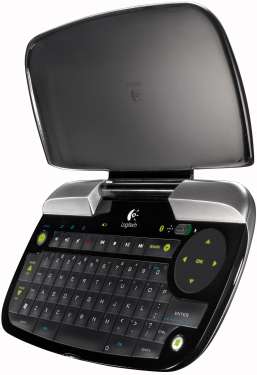
Back to the device itself. As you can see from the below picture, this is a thumb-operated device, so it's perfect for those of us who are all thumbs as it is. The buttons themselves are peaked nicely so you get a feel that you are square on a button, and not holding down its neighbour too. Everything is in reach even for someone like me who has smaller hands, though I do have to do a little adjusting to reach the Media Player buttons across the top.

This is where being a girl kinda sucks. I have regular length fingernails, and having these makes the use of the ClickPad to be rather difficult. It does not register unless you touch it with a fairly large portion of your fingertip, which for me means I have to use it with the side of my thumb joint making it a little inaccurate, but that's probably just me. Guess I'll just get a manicure.

Functionality

This device has two personalities: the touch-pad mode and the media-remote mode.

The touch pad mode is for use as a PC keyboard and mouse, as used in typical computer operations such as browsing the web, sending e-mail, etc. In this mode you are provided with a fully functioning keyboard and pointing device.

There is a small mode toggle button that when moved to the right, reveals an orange indicator with cursor arrow, to let you know you're in touch-pad mode. In this mode, the backlighting is orange, and a sensor adjusts the backlighting depending on your level of ambient light. In this mode, the ClickPad works exactly like a touch pad on a laptop, and there is an orange backlit ring around the ClickPad in this mode. The keyboard is a traditional QWERTY set-up with function keys to allow for almost every function of a full keyboard.

The media remote mode is for use as a, well, a remote. TV and movie playback, volume control, as well as channel changing and other TV remote functions. Moving the small toggle button to the left reveals a green indicator. This mode has "platform intimacy" with Microsoft Windows XP Media Centre Edition and Windows Vista Media Centre. In this mode, the backlighting glows green. In media remote mode the ClickPad functions as a directional pad (or d-pad), with the familiar directional arrows and a green glow for easy low light navigation.

While the diNovo Mini isn't going to replace my Harmony remote any time soon, it does have the full functionality of a full media centre remote. You can see in this diagram the different functions on a remote and how they translate to the diNovo Mini:

In either mode, the ClickPad functionality took some getting used to. Using it as a d-pad, I noticed that the directional arrows were not actually at the edges of the pad, but in a bit, and the centre acts as a click button as well. A couple of times I found myself clicking when I meant to be navigating, but with more frequent use I should become more accurate. In the touch pad mode, the cursor movements were smooth, but again, it was tough for me to accurately hit the minimize button. Then again, I'm not exactly the most accurate with my laptop touch pad either.

Overall, I'm totally thrilled with this device. It immediately had a home on my coffee table and using it was completely intuitive. Not once did I have to break open the instructions (that's a good thing). Even when I wasn't sure why there were two Windows buttons, I immediately understood that the one on the left side opens your Vista start menu, while the one on the right, brings up your Media Center menu. I pressed Function Explorer to bring up my browser immediately, typed in a URL, my address bar expanded, and I thought, "oh hey, how do I use directional arrows in touch pad mode?" Easy, hold down the Function key and the ClickPad temporarily turns into a directional pad!

I have to admit, almost everything about the diNovo mini was well thought out and flawlessly executed with the exception of the lack of Xbox 360 and OS X support. Since Logitech manufactures a special Harmony remote for Xbox users, we know that they could have included support here.

The ClickPad could also have been a little more accurate, though it can be adjusted with the software, so that's a plus. In use though, I did at times miss the trackball of the previous media keyboard I was using, and also its corresponding left and right mouse buttons. It was more accurate, slightly more natural and having actual mouse buttons made for easier mouse-type navigation and use.

Lastly, one gripe I have (although it's to be expected) is the price, at $149.99USD... this is one pricey accessory!

I am seldom disappointed with Logitech products, and this one is no exception. Overall, I'd like to give the diNovo Mini an 8.75 out of 10. It's not quite a 9 out of 10, but it certainly deserves more than an 8.5 out of 10.

Discuss in our forums!

If you have a comment you wish to make on this review, feel free to head on into our forums! There is no need to register in order to reply to such threads.


Copyright © 2005-2008 Techgage Networks Inc. - All Rights Reserved.