Techgage logo

ASUS WL-500g Premium Router

Date: November 8, 2006 - Author: Rob Williams

Routers are often boring, but ASUS proves that doesn't have to be the case. The WL-500g is a very fast WiFi router that offers USB connectivity and even the ability to download while your computer is turned off!


Introduction

As I mentioned in my Lamborghini VX1 review earlier this week, ASUS is a company that strives to be unique in more ways than one. They have always been known for their high quality, which is why more often than not, their product is more expensive than the one sitting next to it. Aside from churning out leather bound notebooks or ones modeled after exotic sportcars, they are also busy creating top quality routers.

A router? How interesting can a router possibly be? That's the exact same question I asked just last week, as I am not really into networking personally. I love taking on some challenges though, and was in desperate need of an upgrade from my previous D-Link WiFi router. The WL-500g fits the bill as a feature packed router, and we will touch on all of it's key features today.

Closer Look

Before we jump into the pictures, let's take a quick look at the features that make this a better than average router.

The WL-500g Premium is high powered, suited for b/g connections. If the default performance doesn't prove good enough for your conditions, you can activate an Afterburner feature, which boosts the data transfer speeds by 35%. This particular router does not support the new n standard, but rather you would need to look at the WL-500W for that instead. We will be taking a look at that router in the coming weeks.

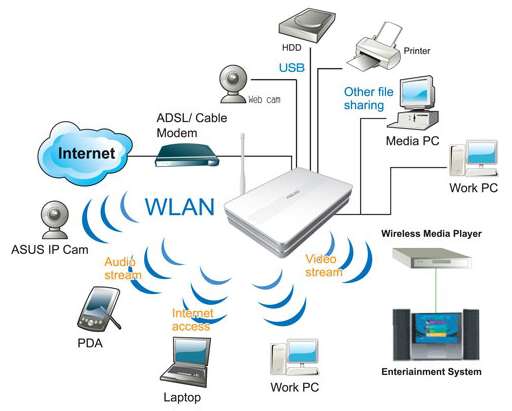
What really sets the WL-500g Premium apart though, is the fact that it doubles as a media sharing station. Simply put, the back of the router offers two USB 2.0 ports, for USB thumb drives, web cams, or external hard drives. There are a lot of possibilities here. What's even more interesting though, is the fact that you can set the router to download a file, then turn your PC off and let it do it's thing. I will get into this more shortly.

BroadRange is another technology that's boasted about here. With it, it claims to have 300% better signal coverage, meaning you really should be able to connect to the router no problem regardless of where you are in your house.

This isn't a normal router, and the possibilities are many. Though I have not tested out every possible configuration, you can see some recommended ones below.
Now that we have covered the basics, let's see what we are dealing with physically. The router comes in a very modest looking box, just large enough to hold the contents and nothing more.

Besides the router itself, included is a DC adapter, lan cable, multi-language manual, the antenna and also the driver CD-Rom. This disc does not simply contain a manual though. It includes the ASUS Lan Utility which you can use to easily configure the router.

This is by far one of the cleanest looking routers I've come across. At first, it looks like something Apple may put out. But, besides the white color, the WL-500g has a good sense of style. The top and bottom are plastered with numerous holes to allow for good heat release, which is useful since routers do tend to get very hot at times.

Here is a clean look of the front. Hot!

We have the router name, and also the slew of status LEDs gracing the front.

As we can see here, the router includes 4 LAN ports for any computer you want to have using a wired connection.

On the other side, there's a DC power connector port, reset switch, EZ Setup button, WAN port and of course the dual USB 2.0 ports.

Whew! If only everything was this easy to assemble.

Installation

I won't provide a huge quantity of images of the admin, because it's not much to look at. However, upon first entry, you will be asked, "Thanks for purchasing the ASUS Wireless Router, do you like to start Quick Setup directly?", to which I promptly said yes. Well, the computer didn't understand me when I talked to it, so I instead clicked on the OK button.

Here in order, are the questions you are prompted with:

My configuration is this: 2 PC's wired into the router, 1 Xbox wired, 2 PC's wireless into the router. At first, the wired connections worked no problem, but the Wireless was completely non-functional.

This is not something that surprised me though, as I've always run into problems in the past. Personally, I blame them on the D-Link NIC's I am using, but I can't point the blame until I get another network card in to test with. Regardless, the WiFi ended up working on the PC with a PCI-Wifi card, but not the one with the USB based WiFi card. With security completely turned off, I could connect to the router without issue from the PC with the actual network card, but not the other. Again, I blame this on the adapter, as it's complete garbage. Something I should not have wasted money on, back in the day.

I tested out WPA/WPA2 and the PSK varients, but got absolutely nowhere. So at this point, I figured I'd throw in the CD-Rom to see if it would help me along any. At this time, I was unaware that any software was included on the disc, but there is a simple utility called "EZSetup Wizard".

This begins you out at a screen showing you a diagram of how your setup should be. Then, you must reset the router and hold the EZ Setup button for three seconds. After, you can push the respective button in the program to continue.

If all is setup properly, the program will scan for the router and then if successful, connect to it. You are required to input an SSID, and it will automatically supply a WEP key for you. If you prefer WPA, the option is there for that also. I stuck with WEP for the sake of simpleness. It then finalizes the configuration. Lo and behold, the internet worked like a dream!

I took the key it provided and brought it to the other computer, configured the WiFi in Windows, and then that PC was also working on the network without issue. When it comes to networks, all experiences may prove different. I am the kind of person who will run into a hundred varying problems first, just because that's how things have to be. After the EZ Setup set everything.. up, I manually inputted all the values inside the router and had the same results. I am a networking noob, but it didn't take very long to get everything set up properly.

The first thing I wanted to give a test was the latency. The first test was on a Windows machine about 20ft away from the router. Throughout multiple tests, the latency hovered between 1 - 4ms. Pinging the website proved to be speedy also, though that's lag that has nothing to do really with the router. The website is half a continent away from my house, so 45ms is not too shabby.

Using a wired connection, we can see the latency is even better improved. Nothing incredible here, as this is really the norm nowadays. However, it's better it be the "norm" than be worse off ;-)

I tested the connections throughout the day, and repeatedly tested for variations in the latencies. Even while downloading a huge ISO at high speeds, the latency didn't increase, which was nice to see. So, online gaming should not prove to be a problem at -all-. The latencies were very low, and the highest I have seen them go was 4ms... still respectable. This is essentially 4ms more than what a wired connection would provide, but in the end there is no noticeable difference when doing anything online between the two computers.

Media Sharing

Probably the biggest feature of this router is also a niche one. You will either think it's a cool feature and use it, or think it's a cool feature but never actually pay an ounce of attention. Ever crave downloading a huge file when you want to leave the house, but hate leaving your power sucking desktop on? You can do that with the WL-500g. As simple as it sounds, it can actually get more advanced than this, because it can not only handle HTTP and FTP connections, but also BitTorrent! That, is impressive.

How it works, is simple. If you have a large density thumb drive, such as 4GB or 8GB, it would be perfectly suited for this application. Simply plug it in, and start a download. Or, if you have larger storage needs and use an external hard drive, you can plug it into the back of the router instead of your PC. This allows the entire network to access it, rather than just yourself. This would be particularly good if you have a media center PC and want to wirelessly stream music throughout your house.

One thing to note, is that if you choose to use a thumb drive, you will want to use it for the sole purpose of being plugged into the router. Once you copy something over, the router will automatically create various files on the drive, making a complete mess of your file structure. If you no longer want to use the drive in the router, it's a simple matter of formatting it in Windows.

The process to download a file through the router is simple. First you need to open up the "Download Master" program, and then find the URL of the program you want to download. To give a test, I went to the Fedora Core website, and found a URL for the CD 1 from the "Zod" version. If the FTP you are on requires authentication, you can input the values here. Since I am downloading from a public server, I went ahead with the download.

To track the download process, you can look under the Transfers tab, and see how it's doing. If it's going incredibly slow, you could go fish for another URL to use that may give you better luck. Another idea is to test out the URL manually prior to doing it through here, to save time.

With this manager though, you can cancel the download, or delete it if you want. To give another test, I tried a smaller file. After I started the download, I turned the PC off for a few minutes while it did it's thing. Why? Just because I could... that's why. After booting back up, I loaded up the download manager and, and seen that the file was completed.

Whenever a file is completed, you can click on the "Folder" tab and open up the Completed folder. From here, you can do whatever you want... move/delete/copy, just as though you are grabbing the file from a normal thumb drive. The transfer speed I encountered was nothing amazing. The 25MB file that was there, took 13 seconds to copy to the desktop, for 1.92MB/s. Still, for a wireless connection, no complaints.

As for BitTorrent, I wanted to quickly test that out also. So, I went to a popular torrent site and grabbed an Ubuntu Edgy Eft torrent file. I quickly found out, that the ASUS download master will automatically take over your torrent files. So, you may want to reassociate file extensions after you install this with your regular torrent program.

For a BitTorrent app, this one is very lackluster. It has a specific purpose, and that's to download the file. Since larger torrents can take far more than a few minutes to download, your best bet is to start the router to do it's thing, and then shut the PC down.

After it's said and done though, I did not have any luck with torrents. They would be added, but constantly be "Queued". I tried torrents from different sites, but didn't get very far. While a few did "error" out due to normal torrent issues, none went anywhere. Again, your experience may prove different. As for the HTTP and FTP downloads, they worked like an absolute dream.

Final Thoughts

The WL-500g Premium is a router that has a lot going for it. Compared to the previous D-Link WiFi router I had, this is a huge upgrade. The sad fact may be, that both routers retail for a similar SRP. So, "You get what you pay for." may not always apply. This is one fast router... I've had great luck with it so far. As our latency tests proved, our wireless connection never rose above 4ms. The majority of the time, it hovered around 1ms. This may be different if you live in a large house with many walls blocking the routers path, though.

Not only are the latencies great, but the time to connect is fast also. Previously on the livingroom computer, after booting into Windows it would take near 30 seconds before the internet was good to go. But with this router, the connection was instant... as soon as the desktop is hit. I did not enable Afterburner during my testing, as I don't live in such a large house that it's needed. The default settings proved fast enough, but as I mentioned, AfterBurner may be needed if you have a lot of walls between the PC and the router.

Obviously, one of the key selling points is the fact that you can download anything while your PC is off, including torrents. Though I did not have much luck with the torrents specifically, I know a few who have. You just need to bare in mind that you may need to tweak a little to get them functioning properly.

I do like the fact that you can plug in a thumb drive or external hard drive and access the files throughout your house, on any computer. As long as you are running the Download Master software and are connected to the router, you should have no problem accessing what's on the drive. However, if you are an alternative OS user like myself, you will not be able to access the router the same way you can with Windows.

Instead, you can set up an FTP server. This proves to be quite easily actually. Just a few small settings to adjust, and a user to setup if you want, and you are good to go. You then just need to connect to ftp://192.168.1.1/ or jump into an FTP client and access it that way. You can adjust various settings to allow yourself to write to the drive, instead of only being able to read from it. That can vary on a per user basis, also.

The router is also compatible with an Xbox 360. Not only to get Live working, but to grab photos and music from the drive that's plugged into the router. In the above photo, you can see I transferred an MP3 to the drive, and below, you can see it being accessed off the 360. This wasn't completely easy, but after tweaking around for about 15 minutes it was working smooth.

I've only been using this router for a short time, but so far I am loving it. It's fast, offers a lot to the user and is reliable. The software and setup is somewhat clunky, and the GUI is absolutely ugly, but it works. One of the highlights about the admin panel, is that it's completely in-depth. I could almost devote an entire article to everything it offers. You can control bandwidth from a certain IP, setup a webcam for remote surveillance and control everything else to the point of it being perfect, for you. Seriously, this is one in-depth router, but you do not need to take advantage of everything it offers in order to make full use of it.

I am awarding the WL-500g an 8/10... a great showing from ASUS. If you are in the market for a new router and don't yet want to make the 'n' leap, the WL-500g Premium will treat you well.

Discuss in our forums!

If you have a comment you wish to make on this review, feel free to head on into our forums! There is no need to register in order to reply to such threads.


Copyright © 2005-2009 Techgage Networks Inc. - All Rights Reserved.